- Posted on
- • How-To & Tutorials
Walk-Through of Fax Sending With Faxmingle
- Author
-
-

- User
- hira
- Posts by this author
- Posts by this author
-
Find out how FaxMingle guides users through free online faxing with a clear layout, simple document upload, and an email-based verification system. This walkthrough highlights each stage of sending a fax, explains how to format files for smoother delivery, and shares practical tips for secure online transmission.
Sending a fax online through FaxMingle is a simple process that lets people deliver documents without any physical fax machine. The platform presents a clear layout with well-separated sections that guide users from the first field to the final confirmation. This guide explains every stage so the experience feels predictable and easy to follow.
What this guide covers
- Walk-through of fax sending with FaxMingle
- Tip for sending images of different sizes in a single fax (Word DOCX method)
- Step-by-step instructions for sending a fax online for free
- Sending faxes securely online: tips and best practices
- How to convert PDF or Word documents to fax-friendly format
Step 1: Open the FaxMingle Send Fax Page
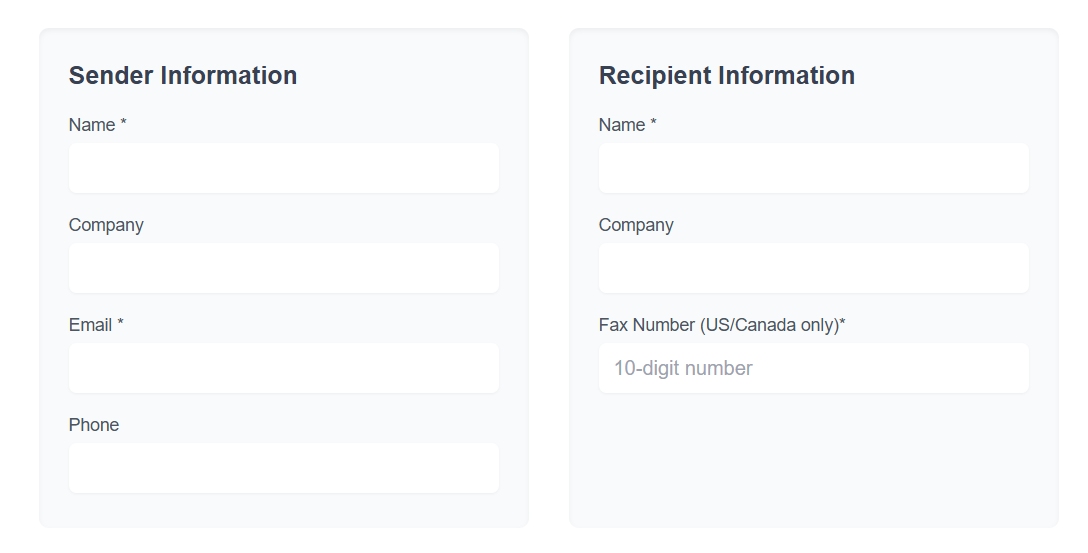
The first screen displays the sender form on the left and the recipient form on the right. The layout groups information in a readable way, helping users enter details without confusion.
The sender form collects a name, company, email address, and phone number. These fields help shape the cover page that accompanies the fax.
The recipient form collects the receiving party’s name, company, and fax number. This ensures the transmission reaches the correct destination.
Step 2: Add Your Cover Page Notes
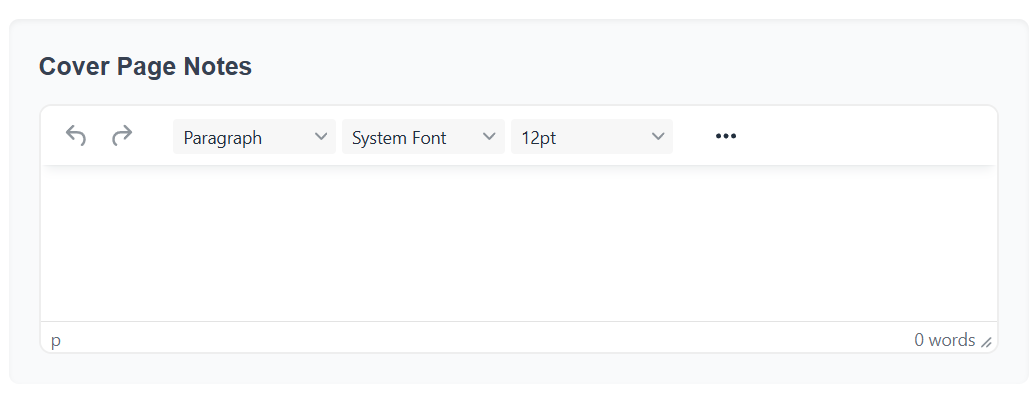
The notes section appears below the contact forms. This area allows users to write a message that appears before the attached documents. Many people use this space to explain the purpose of their fax or to reference information the recipient will recognize.
The field supports simple text entry and produces a note that reads clearly on the cover page.
Step 3: Upload Your Documents
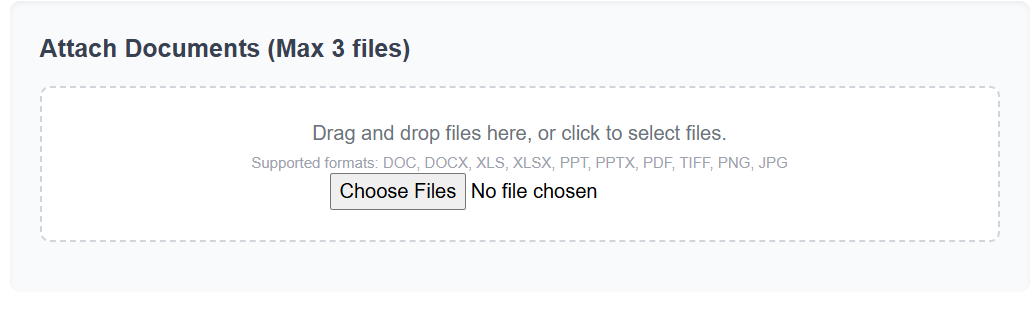
The document upload box appears beneath the notes panel. FaxMingle accepts several common file types, including PDF, DOC, DOCX, PNG, TIFF, XLS, and PPT formats. You can attach up to three files for one fax. The platform converts each file into a fax-friendly layout automatically, so you do not need to adjust formatting on your device.
If you plan to send several images with different dimensions, a simple method keeps everything consistent: place the images into a Word document, arrange them in the order you want, save the file as DOCX, and upload that single document. This Word DOCX method helps each page appear uniform for the recipient and keeps the final fax easier to read.
This process continues into the selection of your transmission plan because your file choice influences how many pages your final fax contains.
Step 4: Choose Your Sending Option
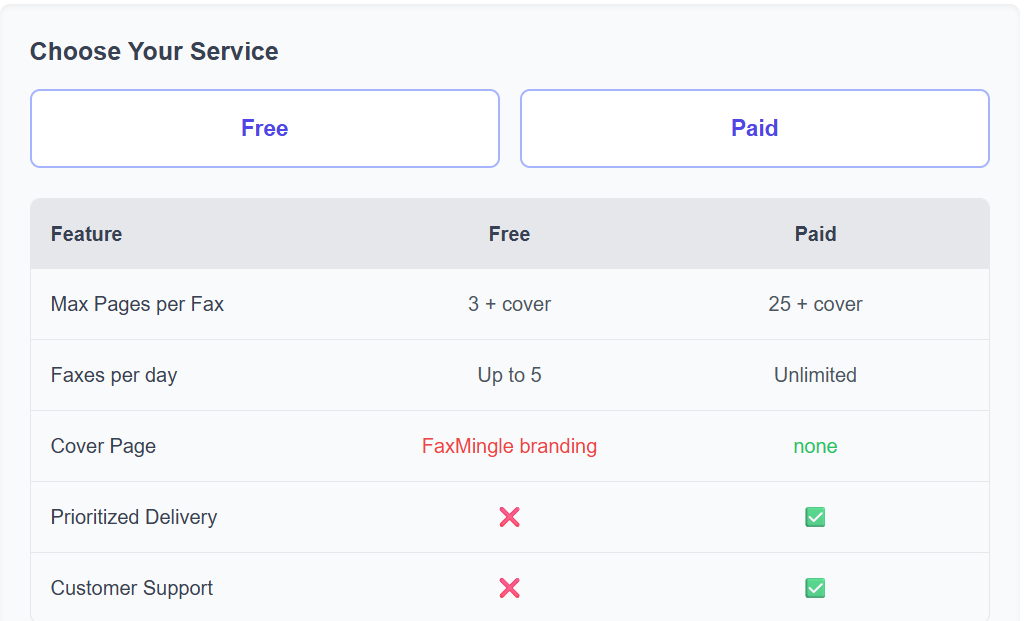
FaxMingle offers two sending paths. The free option supports up to three pages plus a cover page. It includes a small FaxMingle message on the cover sheet and follows a standard delivery queue.
The paid option supports a higher page count, removes the FaxMingle message, places your fax earlier in the delivery line, and includes assistance for account holders. Both options follow the same screen layout, which keeps the selection simple for users who only need to send a short document.
This leads directly into the final stage because your selection determines which submission button you will click at the bottom of the page.
Step 5: Send Your Fax
After reviewing your details, your notes, and your attachments, you can proceed to send your fax. The screen presents two clear buttons labeled for free and paid transmission. When you click one of these buttons, FaxMingle starts by sending a verification message to the email address you entered earlier.
You need to open that email and follow the instructions to confirm that you are the sender. This verification step protects the service from automated misuse and connects the fax request to a valid email address. Once you verify your email, the platform processes your documents and prepares them for delivery to the destination fax number.
When the transmission attempt finishes, you receive a second email that reports the final status. This message confirms that your fax was sent successfully or explains that the receiving line could not accept the transmission. These two messages close the loop, so you always know what happened to your fax.
The final confirmation brings the process to a natural close because you now have clear evidence that your documents reached the correct party or why delivery failed.
Sending Faxes Securely Online: Tips and Best Practices
A few habits can improve security when sending documents online:
1) Confirm the recipient fax number carefully. 2) Avoid placing sensitive information in the notes section unless necessary. 3) Keep email accounts protected with updated security settings, since status messages rely on the user’s email inbox.
These practices support safer online faxing, especially for documents that contain private information.
How to Convert PDF or Word Documents to Fax-Friendly Format
In most cases, FaxMingle does the conversion work for you. When you upload a PDF or Word file, the platform reformats the pages into a fax-friendly layout automatically. However, you can still take a few steps to help the final result look cleaner on the recipient’s side.
- Use clear, legible fonts
- Leave adequate margins
- Avoid placing key information at the extreme edges
- Combine multiple related images into a single DOCX file for cleaner sequencing
These choices help the final transmission appear structured and consistent on the recipient’s side.
Conclusion
FaxMingle’s design makes the online faxing process feel steady from beginning to end. Each section builds on the last, giving users a sense of direction as they move through the screens. The platform keeps the focus on simple inputs, clear document handling, and a verification step that confirms every transmission. This approach supports people who want a dependable way to send documents online without dealing with physical machines, and it reflects the purpose behind FaxMingle’s overall design.